
How to View & Preview Scheduled LinkedIn Posts (Even Mockups)
Scheduling your LinkedIn posts ahead of time is one of the best ways to stay consistent and show up regularly—without always being online. But once you’ve lined up a week’s worth of content, a common question pops up: Where do I actually view scheduled posts on LinkedIn? And how can I preview them like a real post before they go live? Here's the rundown.
Let’s be honest: LinkedIn isn’t exactly winning UX awards for its native post scheduling. Sure, it exists — but it’s clunky, and if you’ve ever tried to preview a post before it goes live, you’ve probably ended up yelling at your screen.
If you’ve scheduled something and want to double-check how it looks, the native experience gives you zero preview. That’s dumb — especially if you’re posting visuals, carousels, or anything where layout matters.
So here’s the real breakdown: how to view scheduled posts on LinkedIn, what your options are, and how to actually mock up posts like a grown-up content team would.
**
What You Can’t Do Natively (And Why It Sucks)**
LinkedIn’s built-in scheduler lets you:
- Set a time and date
- View your scheduled post in a tiny list under your post box (on desktop only)
What it doesn’t let you do:
- Preview how it’ll look in the feed
- Edit the post after scheduling
- See how your image/caption/link combo plays out visually
Basically, it’s like flying blind and hoping your post doesn’t look like trash when it hits people’s feeds.
**
Better Options If You Actually Care About Brand**
If your post has a graphic, a hook, a CTA, or anything beyond “here’s a link I liked,” you need to preview it before it goes live. And ideally schedule more than one.
Here’s how people are doing it in real life:
1. Use a proper scheduling tool.
Tools like Buffer, Taplio, Hypefury, and ContentStudio let you see a visual preview before you queue it. Some even let you edit live.
2. Mock it up manually.
If you’re sharing with a team or a client, paste your post into a Google Doc with a screenshot of the image — or just write it directly in Notion and annotate what goes where. Clunky, but it works.
3. Take screenshots of a draft post.
Yes, this is the caveman method. But some creators swear by writing the post directly on LinkedIn, screenshotting it before scheduling, and dumping it into a shared folder or chat for feedback.
If You’re Serious About This, Use Assista
That’s where Assista comes in. We built a LinkedIn-first post writer + scheduler that actually works like it should — but it goes way beyond that.

With one prompt, you can plug in multiple sources — LinkedIn, Reddit, Forbes, Google, even academic papers — and Assista will scan them for insights, trends, and keywords tied to your industry or audience.
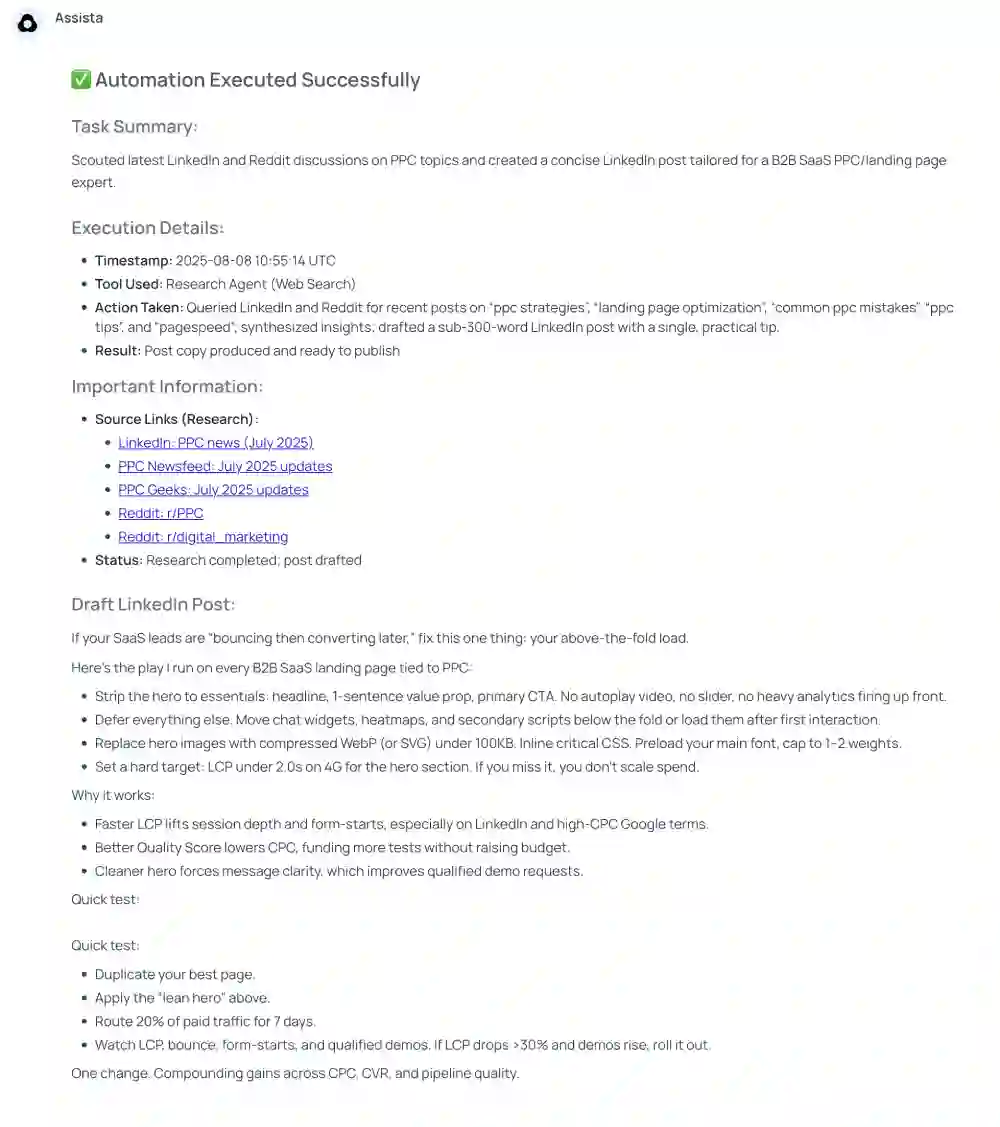
Then? It turns that into content. You can edit, schedule, post — even repost on a loop if it works.
It’s the closest thing to having a research assistant, strategist, and ghostwriter all in one clean interface.
No fluff. No chaos. Just results.
TL;DR
If you’re trying to view or preview a scheduled LinkedIn post and you’re only using the native tools, you’re wasting time and risking bad formatting. Either upgrade to a better scheduler, mock things up manually, or use something built by people who actually write on LinkedIn — like Assista.
Your posts are your brand. They deserve to be treated like it.